WorkBuddy Practical Guide
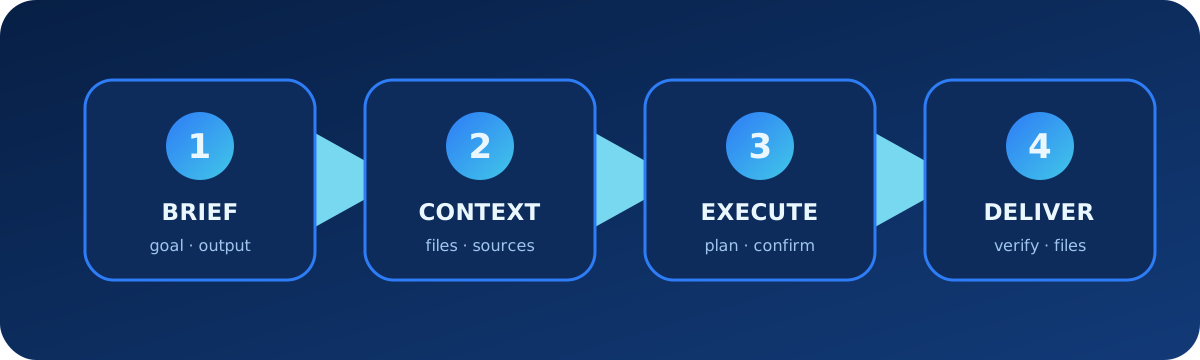
English edition. Adapted from the official WorkBuddy documentation, this guide follows the complete task lifecycle: installation, task briefs, files and deliverables, expert collaboration, Skills, connectors, knowledge bases, automation, memory, permissions, and troubleshooting.
1. What WorkBuddy is for
WorkBuddy is an AI workbench from Tencent that plans and executes multi-step office tasks. It can produce documents, spreadsheets, presentations, research reports, data analysis, and batches of processed files.
| Scenario | Useful input | Expected deliverable |
|---|---|---|
| Documents | Goal, audience, source material, format | Report, proposal, meeting notes |
| Data analysis | Dataset, metrics, time range | Tables, charts, conclusions |
| Presentation | Topic, audience, duration, brand assets | Editable deck and speaking structure |
| Research | Question, scope, source requirements | Cited research report |
| File operations | Authorized folder, naming and output rules | Processed files and change log |
2. Install, sign in, and update
- Download the desktop client for your operating system from the official WorkBuddy website.
- Windows requires Windows 10 or later; follow the official macOS installation guide on a Mac.
- Launch the app, review the terms and privacy notice, and complete QR-code sign-in.
- Use the profile menu to change the interface language or check for updates.
Start with a small task that does not require an external account or sensitive files. Verify model access, file permissions, and artifact previews before connecting more services.
3. Create a task that can be accepted
Weak request
Create a market report.Complete brief
Goal: Create a Q2 2026 briefing for management on the Southeast Asian
AI office software market.

Sources and scope:
- Use the uploaded sales data and approved public sources
- Cover Singapore, Malaysia, and Thailand
- Label the data cutoff as 2026-06-30

Deliverables:
- An editable presentation of no more than 10 slides
- A one-page executive summary
- Source and observation date for every external statistic

Constraints:
- Do not upload the raw customer list
- Do not send files to any contact
- Ask before proceeding if a critical source is missing
4. Choose a mode and provide context
Choose the general task, creative design, project, expert, or assistant entry point according to the job. When uploading files or authorizing a folder, grant only the smallest necessary scope and label which files are authoritative, templates, or style references.
Attachment roles:
- sales-q2.xlsx: the only source of sales figures
- brand-guide.pdf: colors and typography
- old-deck.pptx: structure reference only; do not reuse its numbers

If attachments conflict, follow sales-q2.xlsx and this task brief.
5. Collaborate during execution
Use the task conversation to answer clarification questions, supply evidence, correct direction, and iterate. For a complex job, review the plan and artifact structure before generating final files.
Do not generate final files yet. First provide:
1. Your understanding of the task
2. The execution plan
3. Questions that require my decision
4. Expected deliverables and file formats
Wait for confirmation before execution.
Keep sections 1 and 2. Rewrite section 3 so every conclusion maps directly
to the data. Do not change chart values. List the differences from the prior version.6. Verify results and file changes
Review the result preview, all generated files, and the change list. A message saying “completed” is not acceptance evidence.
- Open every primary deliverable and confirm it is not blank or corrupted.
- Check titles, figures, dates, citations, and file names.
- Look for file changes outside the authorized task scope.
- Recalculate key spreadsheet metrics and inspect slide overflow.
- Confirm the destination folder and version name before saving.
Run a delivery check: open every artifact and verify page count, key figures,
citations, filenames, and editability. List every created or modified file and
anything that still needs human confirmation.
7. Coordinate experts and multiple agents
Experts are useful for role-specific work; multiple agents are useful when workstreams are genuinely independent. Assign one final integrator and avoid simultaneous edits to the same file.
Research expert: collect and verify market facts; return cited evidence only.
Data expert: analyze sales-q2.xlsx; do not introduce external numbers.
Presentation expert: build the deck from approved conclusions only.
Main task: reconcile conflicts and perform final acceptance checks.
8. Install and use Skills
A Skill packages executable scripts and workflows. It may read files, call external APIs, or transmit data. Prefer recommended Skills, inspect third-party source and requested permissions, and enable only what the current task needs.
- Install from the Skill market or import a local Skill package.
- Describe a need to let WorkBuddy find or create a Skill.
- Run the security scan before installation; check dependencies, embedded credentials, and outbound requests.
- Disable unused Skills after the task.
Create a weekly-report Skill that:
- Reads this week's Markdown notes from one authorized workspace
- Organizes accomplishments, risks, and next-week plans
- Produces an editable DOCX draft
- Does not read other folders, send email, or upload to third parties
9. Connectors, MCP, and knowledge bases
Connectors and MCP can access Tencent Docs, email, knowledge bases, or other services. Check read, write, delete, and sharing scopes before authorization. Keep human confirmation for consequential write actions.
{
  "mcpServers": {
    "python-tools": {
      "type": "stdio",
      "command": "python",
      "args": ["-m", "my_mcp_server"],
      "env": {"PYTHONPATH": "/path/to/tools"},
      "description": "Python toolset"
    }
  }
}
Use the knowledge base only to answer product-specification questions.
Cite document title and modification date. Do not edit, share, or delete
documents. Report conflicts between sources before choosing one.10. Projects and long-term memory
Projects preserve files and context for ongoing work. Memory is for stable preferences and durable facts. Never store passwords, tokens, customer private data, or transient task content in long-term memory.
Remember: management reports use Simplified Chinese, dates use YYYY-MM-DD,
and external statistics require a source and observation date.
Do not remember the uploaded customer list or any account information.
11. Automation
Automation is suitable for scheduled briefings, recurring organization, and reminders. Define timing, source scope, output location, notification behavior, failure handling, and forbidden actions.
Every weekday at 08:30:
1. Collect AI product updates from approved sources for the previous 24 hours.
2. Deduplicate and record source, publication time, and event time.
3. Draft a briefing under 800 Chinese characters.
4. Save it to the Daily Brief project.
5. Do not publish automatically; report failure when sources are insufficient.
12. Permissions, sandboxing, and data controls
- Authorize the smallest folder scope and distinguish read, write, and execution.
- Approve high-risk tool calls individually; do not make full access the default.
- Scan Skills before installation and review connector authorization.
- Redact sensitive source material and decide whether artifacts may be returned to the cloud.
- Periodically review installed Skills, connectors, models, and automations.
- Use member permissions, quotas, audits, and data policies in an organization.
13. Troubleshooting
- Confirm the desktop client is current and run the network diagnostic.
- Separate sign-in, model, credit, file-permission, and connector issues.
- For a stuck task, preserve its task ID, runtime, exact error, and relevant logs.
- For preview failure, check file type, size, path, and file locks.
- For Skill failure, check scanning, dependencies, version, and permissions.
- For MCP failure, test connection, authorization, exposed tools, and timeout.
- For automation failure, check timezone, enabled state, model availability, and notification channel.
- When sending feedback, attach version, OS, reproduction steps, task ID, and redacted logs.
14. Official source map
This guide was adapted from the official WorkBuddy overview, documentation navigation and changelog, Skills guide, FAQ, and linked pages for installation, task creation and management, results, projects, experts, connectors, knowledge bases, automation, memory, models, permissions, sandboxing, and practical examples.
Editorial update: 11 August 2026. Recheck official documentation for current UI, plans, credits, models, platform capabilities, and permission policy.